
#屠龙之技 Cocos Creator 项目中如何使用系统的文件选择对话框?
脑洞大开,一切皆有可能。
问题背景
文件选择对话框,在App开发中是很常用的一个组件,但是,在游戏开发中并不常见,所以Cocos Creator也没有提供这个组件。
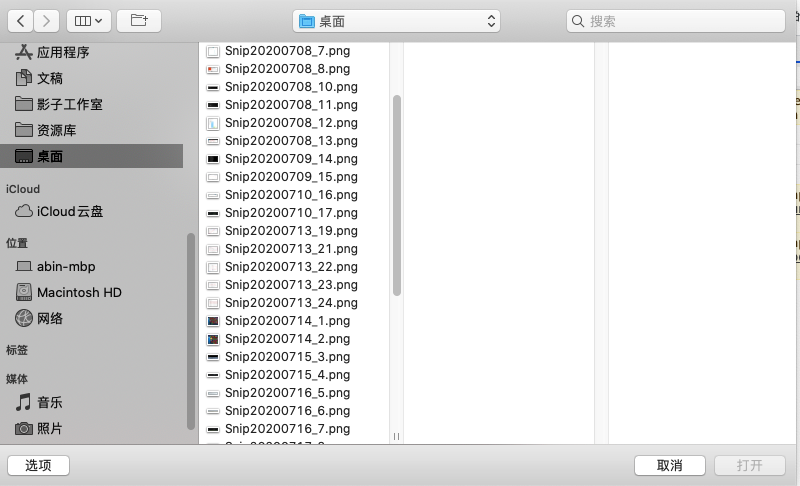
但是,有没有办法在Cocos Creator的项目中使用这个组件呢?
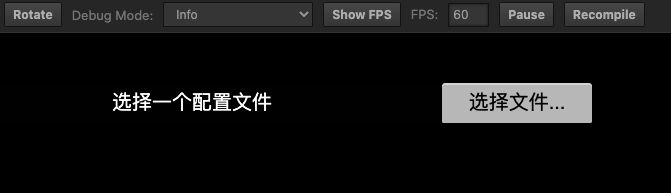
答案当然是:有!
解决方法
方法1,直接调用操作系统的文件对话框组件。
不管是windows还是mac os,甚至android和ios,文件选择对话框,都是系统自带的组件。
所以,如果我们把这个组件的调用代码封装好,提供js接口,那么,就可以直接在Cocos Creator中使用了。
但是,这个方法就比较麻烦,需要针对不同的系统进行封装,费时费力。
方法2,使用HTML的文件对话框组件。
在Web编程时,我们可以使用file 类型的input组件,来作为文件选择对话框的入口。
<input type="file">
参考:https://developer.mozilla.org/en-US/docs/Web/HTML/Element/input/file
在线示例:https://www.w3schools.com/tags/tryit.asp?filename=tryhtml5_input_type_file
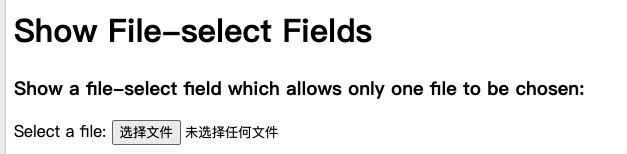
Cocos Creator项目使用的是JavaScript语言,如果能直接调用HTML的接口,那么就可以省去了很多封装的工作。
有几个选择
选项 1). 静态添加
在index.html里添加file input组件,然后在Creator项目的JavaScript代码中调用。
选项 2). 动态添加
直接在Creator项目的JavaScript代码中创建file input组件,并使用。
选项2) 看起来更简洁一点,不需要修改index.html,而且这意味着不需要打包也可以进行测试。
步骤:
- 创建file input
// typescript 代码 function getInputBox(inputBoxId:string, containerId:string){ let inputBox = document.getElementById(inputBoxId) as HTMLInputElement; if(!inputBox){ let container = document.getElementById(containerId); if(!container){ container = document.createElement('div'); document.body.appendChild(container); container.id = containerId; }inputBox = document.createElement("input") as HTMLInputElement; inputBox.id = inputBoxId; inputBox.type = "file"; container.appendChild(inputBox); } return inputBox;
}
- 添加监听
每当用户选择了一个新文件,input会触发onchange事件,所以可以在这个事件里对选择的文件进行处理。
有两种方式可以处理,- 1). 读取event的参数: event.target.files
- 2). 直接访问input的value: inputBox.value
let inputBox = this.getInputBox(this.inputBoxId, this.containerId); if(inputBox){ inputBox.onchange = (evt)=>{ console.info("===> input value change: ", evt); const fileList = evt.target.files; console.info("===> file list: ", fileList); console.info("===> value: ", inputBox.value);let fileUrl = fileList[0]; if(!fileUrl){ console.info("===> No file selected"); return; } this.readFile(fileUrl); };
}else{ console.warn(“Can’t get or create input box”); }
- 读取文件
获取文件的路径后,可以用fileReader读取文件信息
readFile(fileUrl){
    let reader = new FileReader();
    reader.onload = function(e) {
        let content = e.target.result;
        // Display file content
        console.info("===> file content: ", content);
    };
    // 这里用文本方式读,也可以用别的方式
    reader.readAsText(fileUrl);
}
- 触发点击
现在,一切准备就绪,只需要触发file input的click方法,就可以打开文件选择对话框了。
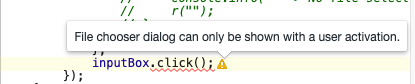
注意 需要把click方法的调用,绑定到Cocos Creator按钮组件的点击事件中。否则,浏览器会提示以下这个错误警告,并拒绝打开对话框:
File choose dialog can only be shown with a user activation
let inputBox = this.getInputBox(this.inputBoxId, this.containerId);
if(inputBox){
    // 模拟点击按钮,打开对话框。
    inputBox.click();
}
注意事项
使用HTML的组件,会有一些限制,比如
- 1). 只能在浏览器中使用。对于原生App,由于Creator打包的原生应用,运行底层不是浏览器组件,第二种方法应该是不可行的(未验证)。
- 2). 必须绑定到玩家的点击操作,不能在没有任何操作时,直接用代码弹窗。
完成
方法2的完整代码
https://gist.github.com/zhangzhibin/a21ec65b434f45efec2103f03b29ba57.js
const {ccclass, property} = cc._decorator;@ccclass export default class FileBox extends cc.Component { // LIFE-CYCLE CALLBACKS: @property containerId = “filebox_container”; @property inputBoxId = “filebox_input”;
inputBox = null; start () { this.initInputBox(); } initInputBox(){ let inputBox = this.getInputBox(this.inputBoxId, this.containerId); if(inputBox){ inputBox.onchange = (evt)=>{ console.info("===> input value change: ", evt); const fileList = evt.target.files; console.info("===> file list: ", fileList); console.info("===> value: ", inputBox.value); let file = fileList[0]; if(!file){ console.info("===> No file selected"); return; } this.readFile(file); }; }else{ console.warn("Can't get or create input box"); } } getInputBox(inputBoxId:string, containerId:string){ if(!this.inputBox){ let inputBox = document.getElementById(inputBoxId) as HTMLInputElement; if(!inputBox){ let container = document.getElementById(containerId); if(!container){ container = document.createElement('div'); document.body.appendChild(container); container.id = containerId; } inputBox = document.createElement("input") as HTMLInputElement; inputBox.id = inputBoxId; inputBox.type = "file"; container.appendChild(inputBox); } this.inputBox = inputBox; } return this.inputBox; } onClick(){ if(this.inputBox){ console.info("click start"); this.inputBox.click(); console.info("click done") } } readFile(fileUrl){ let reader = new FileReader(); reader.onload = function(e) { let content = e.target.result; // Display file content console.info("===> file content: ", content); }; // 这里用文本方式读,也可以用别的方式 reader.readAsText(fileUrl); }
}